OHO Technology
Our products

Employee Management System

Features & Business Benefits

The Employee Management System handles your workforce's time, from shift planning to a payroll-ready overtime figure, in one Windows application. It covers employees, shifts, the holiday calendar, the monthly roster, daily and monthly attendance, overtime and printed time cards.

Product demo

See the system in action

3 min 31 sec · Hindi

Want to see it with your own data?

A short demo on your own shift pattern and a sample month of employees.

Contact us
Overview

Built for businesses that run shifts

Who it is for

Factories, plants, warehouses, security agencies, hospitals and any business that runs shifts and pays overtime. One administrator (HR or the time office) records everything; employees do not need to log in.

The problem it solves

In many businesses, attendance lives in registers and spreadsheets, and overtime is worked out by hand at month end. That is slow and error-prone, and it is hard to defend in a dispute. This system applies the same company rules to every employee, every day, and produces the reports and time cards automatically.

10 modules

Modules at a glance

The system has 10 modules. Set it up once in the master modules, then the daily and monthly work runs from the main menu.

The 10 modules, their menu and what each one does
ModuleMenuWhat it does in one line
DashboardMainToday's headcount: who is in, on break, out, absent, and this month's overtime
Monthly RosterMainPlans every employee's shift and weekly off for the whole month
AttendanceMainDaily clock-in, breaks and clock-out per employee, live or corrected
Bulk AttendanceMainA whole month for all employees on one screen, filled in a few clicks
Overtime ReportMainWorked hours, overtime, payable OT and late arrivals; Excel and time card PDF
Employee MasterMastersEmployee records with photo, department, default shift and weekly off; Excel upload
Shift MasterMastersShift timings, night shifts, break allowance, late grace and roster colour
Company CalendarMastersYear calendar of company holidays
SettingsMastersOvertime rules, pay rates, password, database and subscription
Sign-in and setupStart-upSecure admin login, database choice and licence check

Recommended order to start: Shift Master, then Employee Master, Company Calendar and Monthly Roster. After that, daily work happens in Attendance or Bulk Attendance, and month-end work in the Overtime Report.

Set up once, then every month flows through to payroll

  1. 1. Set up once
    • Shift Mastertimings, late grace
    • Employee Masterpeople, defaults
    • Company Calendarholidays
    • SettingsOT rules, pay rates
  2. 2. Plan the month
    • Monthly Rostershift or WO per day
  3. 3. Record time
    • Attendancedaily punches
    • Bulk Attendancewhole month at once
  4. 4. Pay and report
    • Overtime Reportpayable OT, Excel
    • Time Card PDFper employee
    • Dashboardlive headcount

The masters are set once; each month the roster drives attendance, and attendance drives the overtime report, time cards and dashboard.

Module details

What each module does

Each module below lists what it does and how it helps your business.

1. Dashboard

  • Live tiles: active employees, clocked in now, on break now, clocked out, absent or on leave, and overtime this month.
  • A list of upcoming company holidays, with a note when today is a holiday.

How it helps: managers see the day's attendance at a glance, without asking the time office or opening a register.
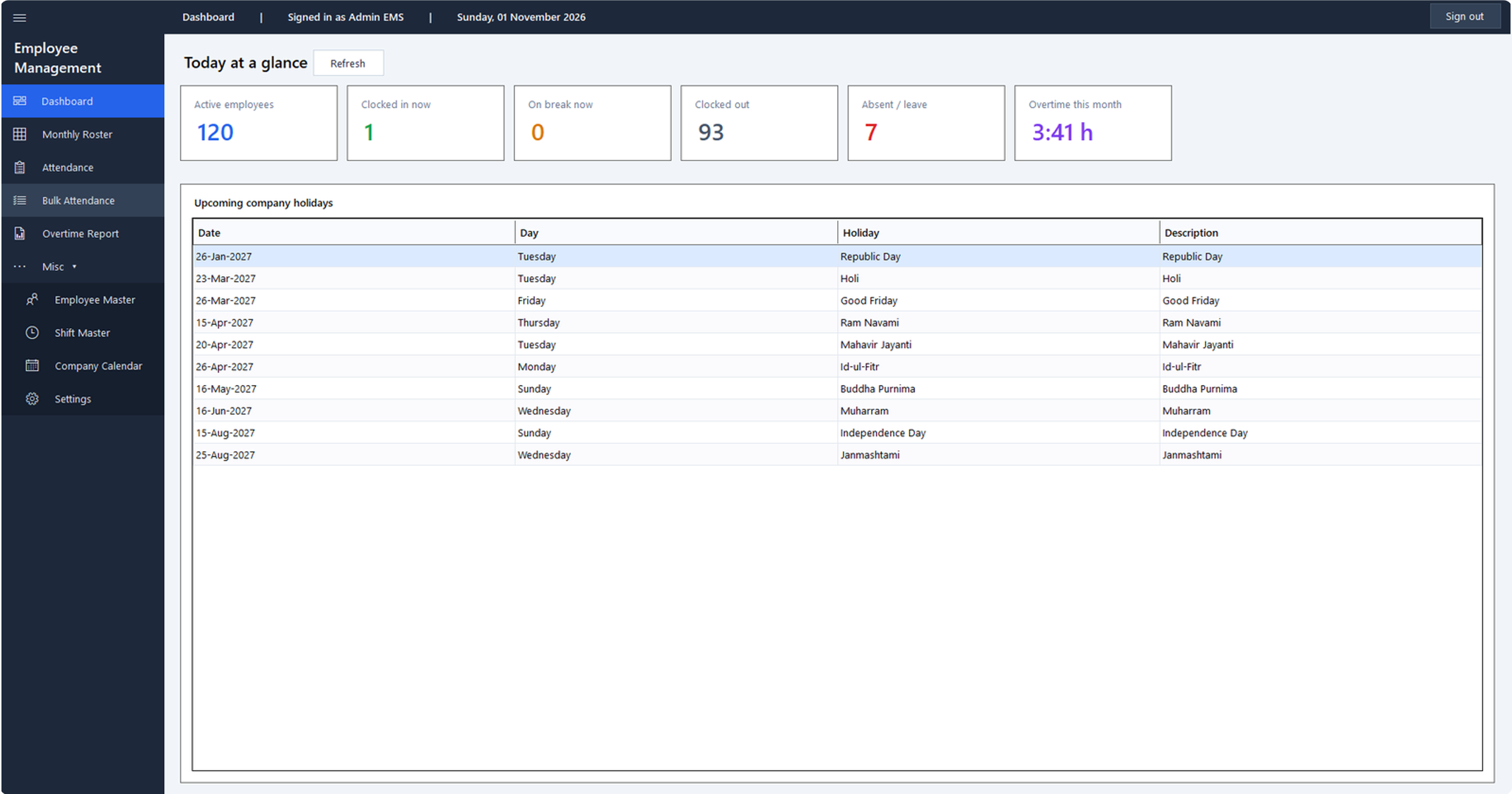
Dashboard screen with tiles for active employees, clocked in, on break, clocked out, absent and overtime, above a list of upcoming company holidays.
Select the image to see it full size.

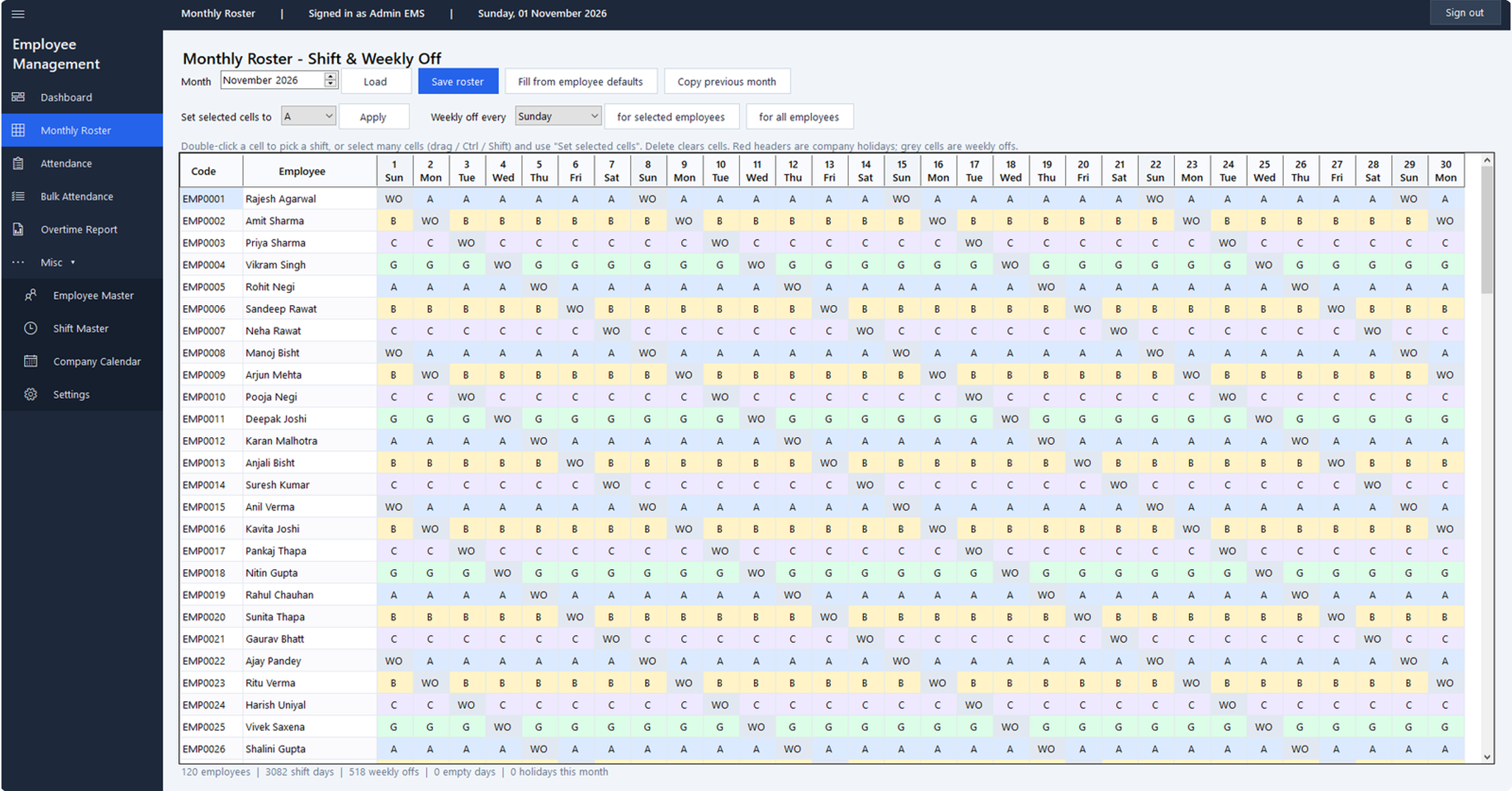
2. Monthly Roster

  • A grid with one row per employee and one column per day; each cell holds a shift code (A, B, C, G) or WO for weekly off.
  • Fill tools: from each employee's default shift and weekly off, copy the previous month (matched by weekday), weekly off on a chosen day for some or all employees, or set any selected cells at once.
  • Holidays are marked on the column headers, cells use each shift's colour, and days before joining are locked.
  • Unsaved changes are flagged, and the app asks before you lose them.

How it helps: a full month's plan for the whole workforce takes minutes, not hours. Attendance and overtime then follow the plan automatically.

Monthly roster grid with one row per employee and one column per day, showing colour-coded shift codes and weekly offs.
Select the image to see it full size.

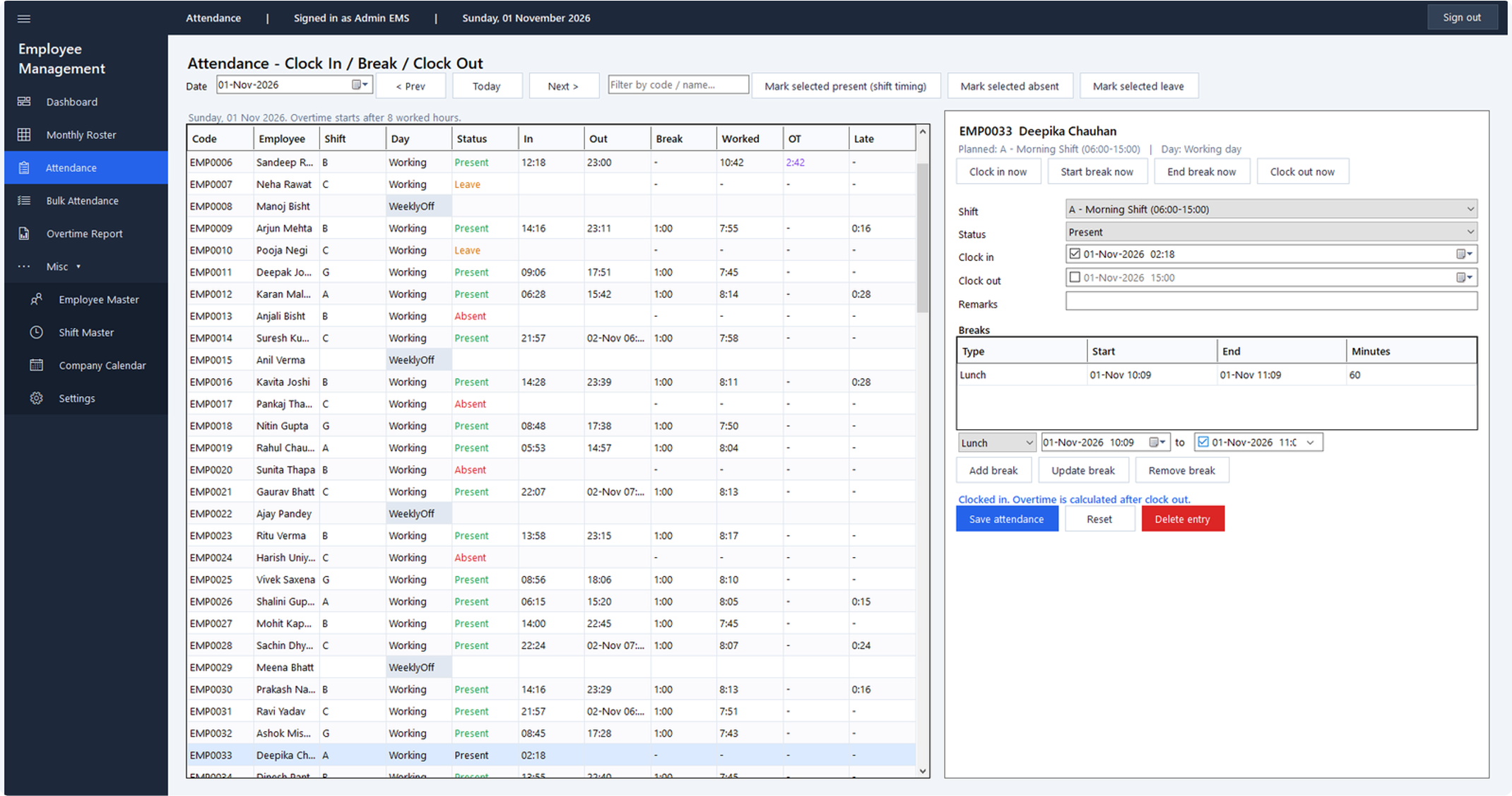
3. Attendance (daily)

  • Pick a day and see every active employee with their planned shift, day type, and what is recorded so far: in, out, breaks, worked hours, OT and late.
  • One-click live buttons: Clock in now, Start break, End break, Clock out now. They also work after midnight for night shifts.
  • Manual entry and corrections: shift, status (Present, Half day, Absent, Leave), clock-in and clock-out, any number of breaks (lunch, tea and so on), and remarks.
  • A live calculation as you type: worked time, breaks, regular time, overtime, late and early leave.
  • Quick actions for selected employees: mark present at shift timing, absent or on leave.
  • Built-in checks stop bad data: clock-out before clock-in, shifts over 24 hours, overlapping breaks, breaks outside working time.

How it helps: entries are accurate from the start. The rules are applied while the entry is made, so there is nothing to fix at month end.

Daily attendance screen listing employees with shift, status, in and out times, breaks, worked hours and overtime, beside a clock-in and clock-out panel.
Select the image to see it full size.

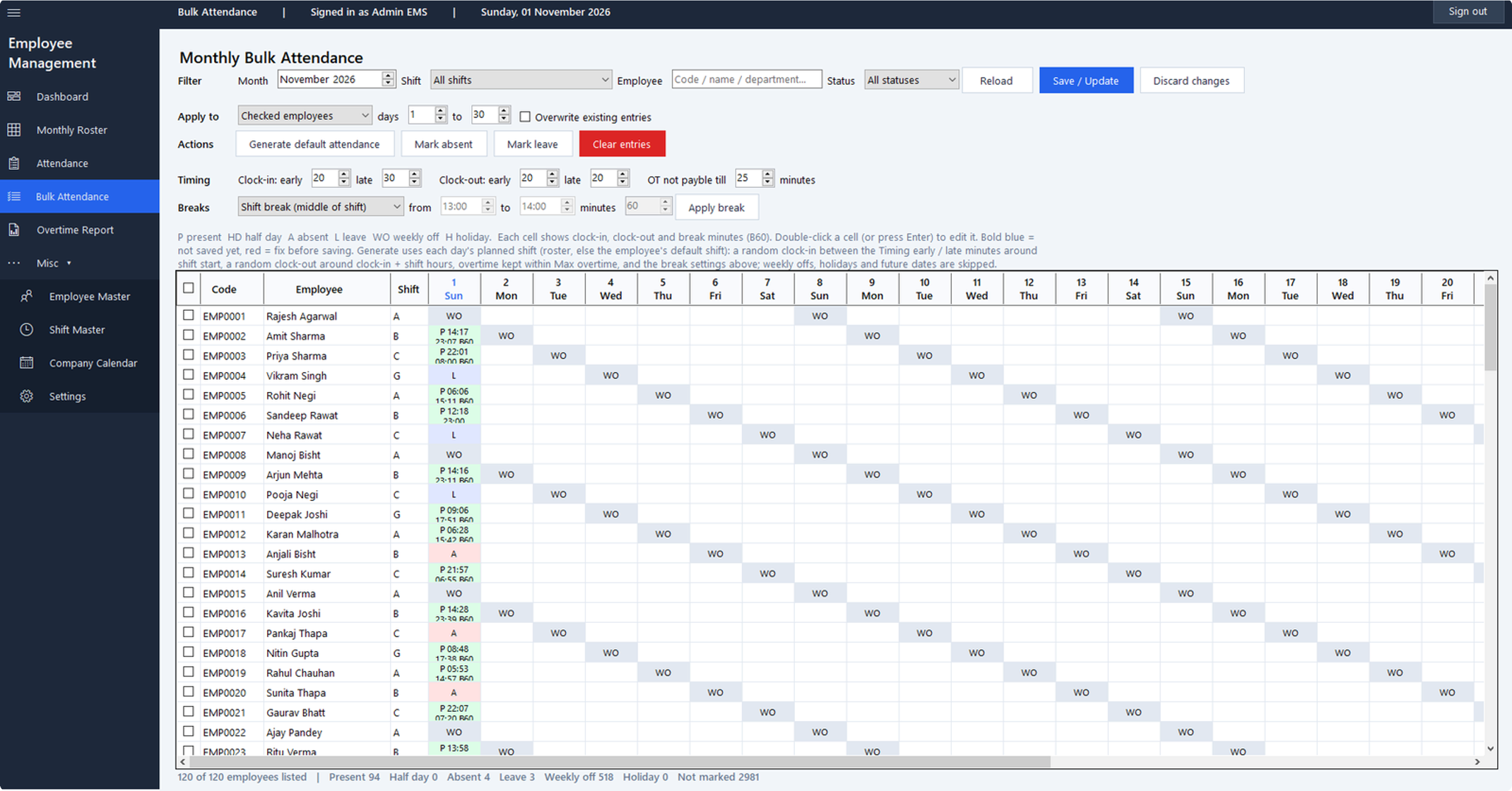
4. Bulk Attendance (monthly)

  • The whole month for every employee on one screen: each cell shows status, clock-in, clock-out and break minutes.
  • Filters by month, shift, employee or department, and status; a header checkbox selects all listed employees.
  • Apply actions to checked employees, all listed employees, or selected cells, over any range of days.
  • Generate default attendance from each day's planned shift. Clock-in is a random time inside a set window around shift start (for example 20 minutes early to 30 minutes late). Clock-out varies around clock-in plus shift hours.
  • An overtime cap keeps generated entries under a set limit (for example 25 minutes).
  • Mark absent, mark leave, clear entries, and apply breaks (shift break, a fixed time, or a duration).
  • Weekly offs, holidays and future dates are skipped automatically. Nothing is saved until you click Save / Update, and every entry is checked first.

How it helps: back-filling or correcting a full month for the whole workforce takes a few clicks instead of days of typing.

Monthly bulk attendance grid with filters, timing and break options above a table of employees by day.
Select the image to see it full size.

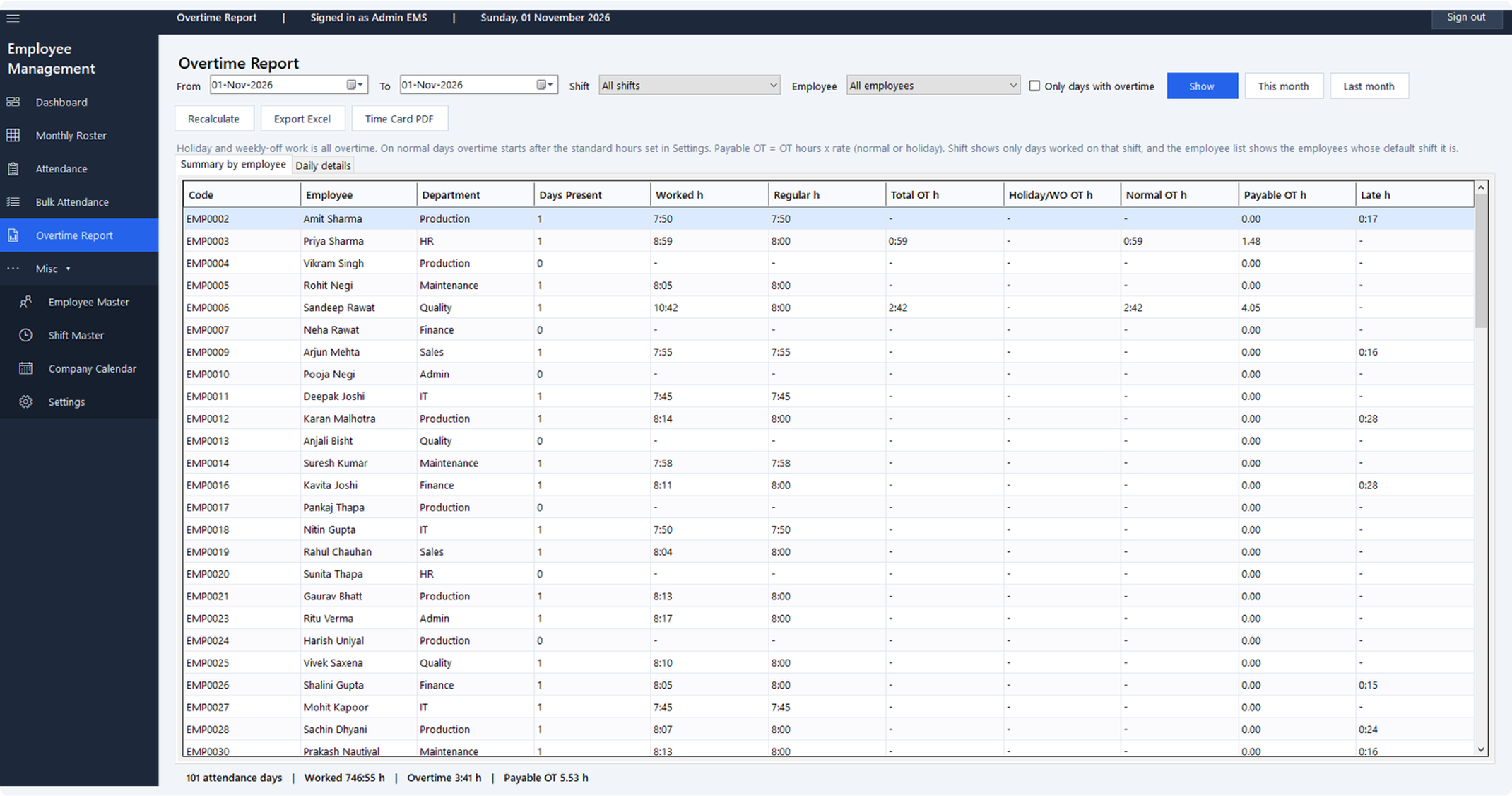
5. Overtime Report

  • Any date range (with This month and Last month shortcuts), for one employee or everyone, optionally only days with overtime.
  • Summary by employee: days present, worked hours, regular hours, total OT, holiday and weekly-off OT, normal OT, payable OT, and late hours.
  • Daily details: one row per employee per day with shift, status, times, breaks, OT, rate and remarks.
  • Recalculate applies the current rules, roster and holidays to past entries.
  • Export to a formatted Excel workbook, and print the monthly Time Card PDF.

How it helps: month-end payroll gets a ready figure in decimal hours, with the daily detail behind it for any query or audit.

Overtime report showing a summary by employee with department, days present, worked hours, overtime, payable overtime and late hours.
Select the image to see it full size.

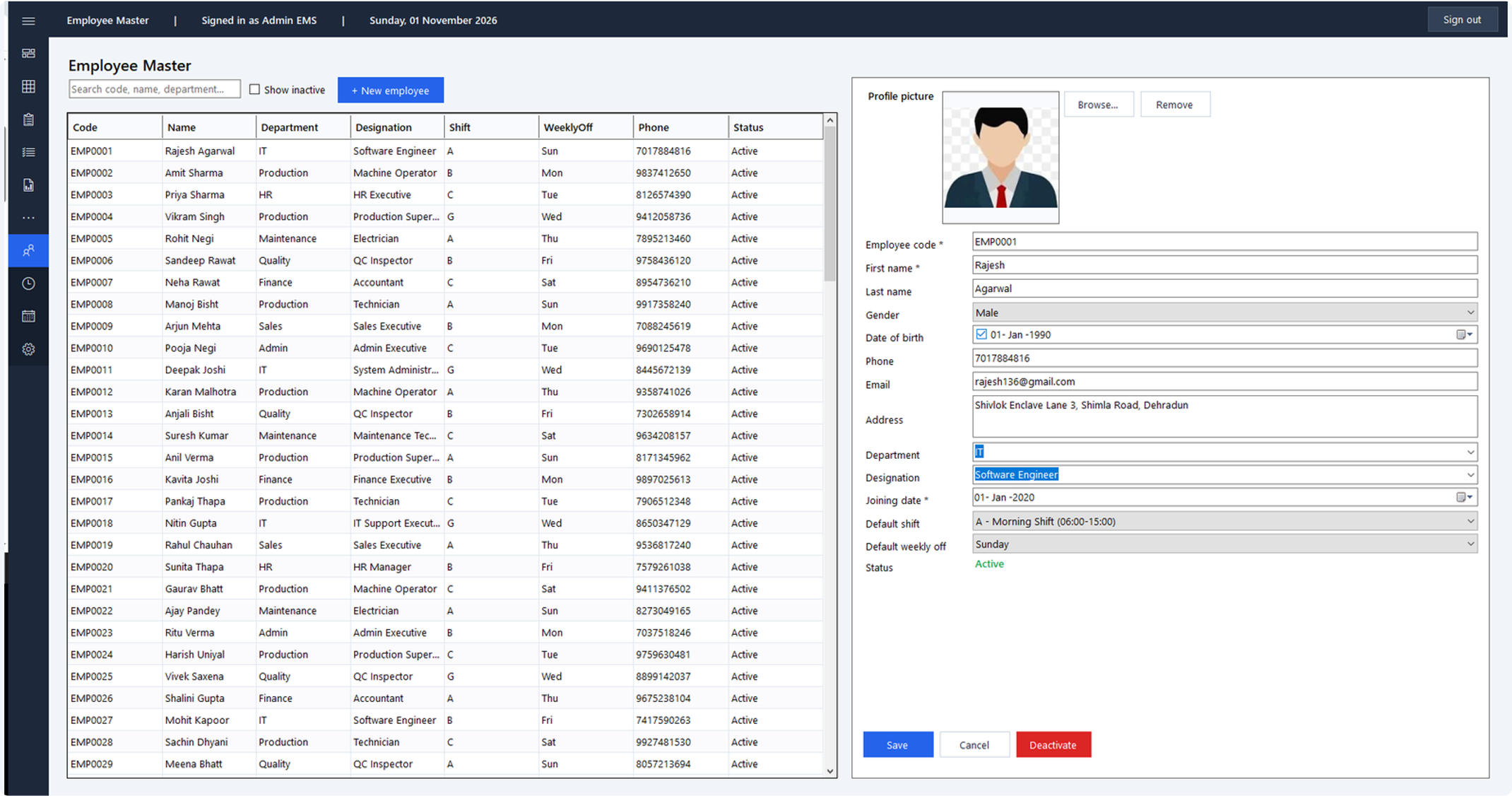
6. Employee Master

  • Employee records: code (auto-numbered, such as EMP0001), name, gender, date of birth, contact details, department, designation and joining date.
  • Default shift and default weekly off, used whenever the roster has no entry.
  • A profile photo, stored safely in the database.
  • Search by code, name, department, designation or phone.
  • Deactivate leavers without losing their history, and activate them again later.
  • Bulk upload from Excel with a ready template. Existing codes are updated, every row is checked first, and nothing is imported if any row has a problem.

How it helps: one clean employee list feeds every other module, and onboarding a whole team is a single Excel upload.

Employee master screen with a searchable employee list beside a form holding the profile picture and employee details.
Select the image to see it full size.

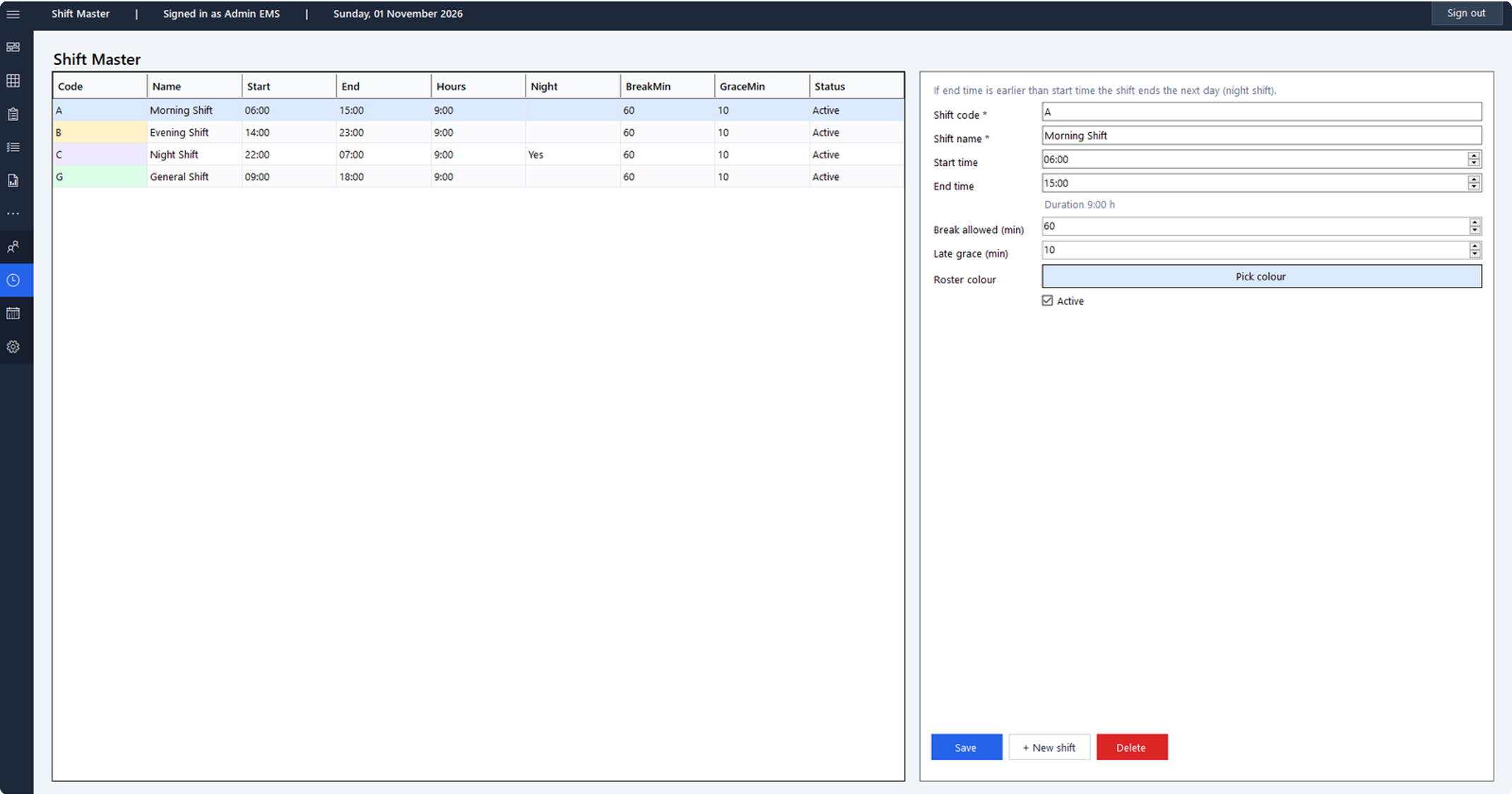
7. Shift Master

  • Any number of shifts with a code, name, start and end time. Night shifts that end the next day are supported.
  • Break allowance, late grace minutes, a roster colour, and an active flag.
  • Comes with four shifts ready to edit: A Morning, B Evening, C Night and G General.
  • A shift that is in use is deactivated instead of deleted, so history stays correct.

How it helps: your real shift pattern is set once, and late marks, roster colours and overtime all follow it.

Shift master screen listing Morning, Evening, Night and General shifts with start and end times, beside the shift edit form.
Select the image to see it full size.

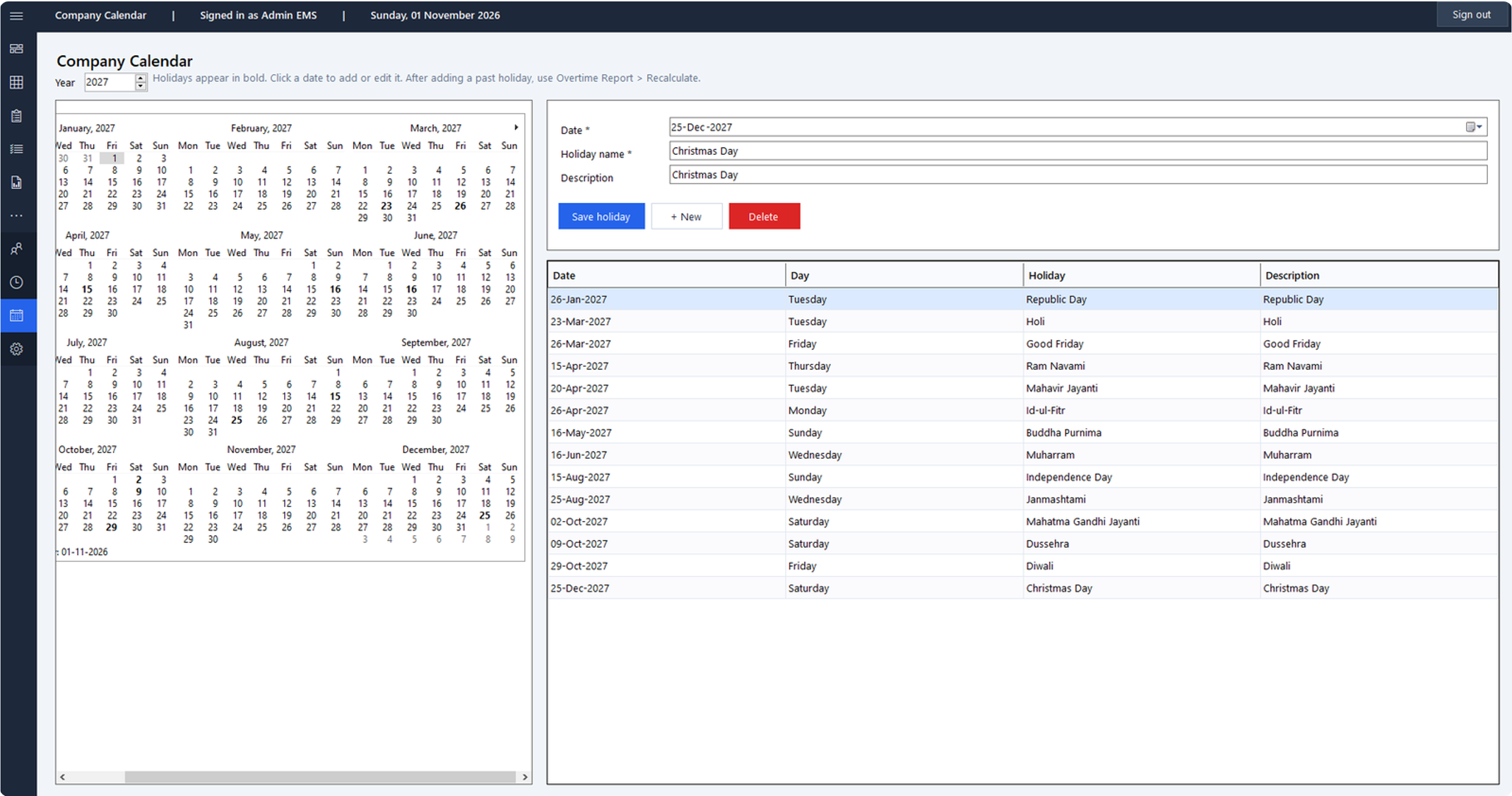
8. Company Calendar

  • A full-year calendar of 12 months with previous and next year buttons.
  • Holidays shown in red, with the holiday name on hover; click a date to add or edit one.
  • A list of the year's holidays beside the calendar.

How it helps: holidays are declared once. Holiday work is then paid at the holiday rate automatically, and nobody is marked late on a holiday.

Company calendar screen showing twelve months of a year beside a holiday form and a list of the year's holidays.
Select the image to see it full size.

9. Settings

  • Overtime rules: standard hours per day, whether breaks count as work, weekly-off work as overtime, minimum OT to pay, and pay rates for normal and holiday OT.
  • Change the admin password.
  • Database: switch between Microsoft Access and SQL Server.
  • Subscription: see who it is licensed to and the days left, and enter a renewal key.
  • Employee Excel upload and template download.

How it helps: the system follows your company policy, not a fixed formula, and policy changes take effect without new software.

10. Sign-in and first-time setup

  • First run: choose the database, then create the administrator account. There is no default password.
  • Secure sign-in; passwords are stored as one-way hashes, never as plain text.
  • A licence check at sign-in.

How it helps: only authorised staff can see or change attendance and pay data.

Calculations

How the rules work

Every day of every employee is worked out by the same rules, so two people who work the same hours always get the same result.

  1. Day type. A company holiday always wins. Otherwise the roster says whether the day is a working day or a weekly off. If the roster is empty, the employee's default shift and default weekly off are used.
  2. Worked time. Clock-out minus clock-in, minus breaks (or including breaks, if Settings say so). Night shifts that end the next day count on the day they start.
  3. Overtime on a working day. Worked time beyond the standard hours (for example 8 hours). OT below the minimum (for example 30 minutes) is shown on the time card but not paid.
  4. Overtime on a holiday or weekly off. Every worked minute is overtime, paid at the holiday rate.
  5. Late and early. Late is measured from shift start once the late grace (for example 10 minutes) is passed. Early leave is measured against shift end. Neither is counted on holidays or weekly offs.
  6. Payable OT. Overtime hours multiplied by the rate: for example 1.5x for normal days and 2x for holidays and weekly offs, in decimal hours for payroll.

All the numbers in bold below come from Settings and can be changed to match company policy.

Worked examples of overtime and late calculations
SituationCalculationOT on time cardPayable OT
G shift, 09:00 to 18:30, 1 h lunch9 h 30 min minus 1 h = 8 h 30 min; minus 8 h0:300.75 h (at 1.5x)
G shift, 09:00 to 18:20, 1 h lunch8 h 20 min worked; 20 min is under the 30 min minimum0:200
Holiday, 10:00 to 14:00, no breakEvery worked minute is overtime4:008 h (at 2x)
C night shift, 22:00 to 07:30 next day, 1 h break9 h 30 min minus 1 h = 8 h 30 min; minus 8 h0:300.75 h
G shift starts 09:00, clock-in 09:25, grace 10 minLate is measured from shift startLate 0:25None

The examples assume standard hours of 8, a 30-minute minimum, and rates of 1.5x and 2x.

Outputs

Reports and exports

Three outputs cover daily monitoring, payroll and records for employees.

Reports and exports, where to find them, what they contain and who uses them
OutputWhereWhat it containsWho uses it
Monthly Time Card (PDF)Overtime Report > Time Card PDFOne card per employee: a column per day with status, in time, out time, break out and in, duration, late, early, OT and shift. Totals of work hours, total OT, payable OT, present, half day, absent, weekly offs, holidays, leaves, late and early counts, and average working hoursHR files, employee sign-off, audits
Overtime workbook (Excel)Overtime Report > Export ExcelSheet 1: summary per employee. Sheet 2: daily details. Formatted, with overtime days highlightedPayroll, accounts
DashboardMain menuToday's live headcount and this month's overtimeManagers, supervisors

The time card prints on A4 landscape. Every page shows the period and print time, and an employee's card never splits across pages.

Your data, your premises

Security, data and deployment

The system runs on your own Windows PCs and keeps your data on your own premises.

Platform, database, sign-in, data safety and license details
AreaWhat you get
PlatformWindows 10 or 11 desktop application (.NET 9)
Database: one PCMicrosoft Access file; nothing extra to install if Microsoft Office is present
Database: several PCsMicrosoft SQL Server 2016 or newer (Express works), shared by every PC; switch from Settings at any time
Sign-inAdministrator account created on first run, with no default password; passwords stored as PBKDF2 one-way hashes
Data safetyAll database queries are parameterised; entries are validated before saving; leavers and old shifts are deactivated, never deleted, so history stays intact
LicenseSubscription key with an end date, digitally signed by the vendor so it cannot be forged or edited; turning the PC clock back does not extend it; one key covers every PC on the same database

Setup takes three steps: install, choose the database, create the admin account. The employee list can be loaded from Excel on day one.

Business benefits

How it helps your business

The system replaces manual registers and month-end spreadsheet work with rules applied automatically, every day.

Business needs without the system and with the system
Business needWithout the systemWith the system
Time savedAttendance typed in day by day; overtime added up by hand at month endRoster copied or filled in minutes; a month of attendance generated in a few clicks; overtime worked out as entries are made
Accurate payCalculation mistakes and disputes over who gets whatOne set of rules for everyone; payable OT in decimal hours, ready for payroll
Overtime cost controlSmall extra minutes add up to paid overtimeA minimum OT threshold and pay rates you set; generated entries capped below the paid limit
DisciplineLate arrivals and early leaving go unnoticedLate and early tracked per day, with totals on every time card
Holiday and weekly-off payMissed or wrongly paidHolidays and weekly offs detected automatically and paid at the right rate
Records and auditsPaper registers that are hard to search or proveA printed time card per employee and an Excel workbook with the daily detail behind every total
VisibilityNo live picture of who is at workThe dashboard shows today's headcount and this month's overtime
Policy changesNew spreadsheet formulas, or new softwareChange the rule in Settings, then Recalculate past entries
Data ownershipData spread across files and peopleOne database on your own PC or server; history is never lost

Next step

A short demo on your own shift pattern and a sample month of employees.

Contact us